Research journal · Security research
Do Not Trust VS Code Extension Install Counts
VS Code extensions run with your permissions while installs and badges are weak trust signals. Learn how to audit, pin, allowlist, and contain them.
A VS Code extension runs with the same permissions as the editor—and therefore with your permissions. It can read and write files, spawn processes, open network connections, and load dependencies without a per-capability prompt.
Yet extension selection is often a three-second decision: search for a formatter, glance at the install count and stars, then click Install. That reflex treats popularity metadata as a security review. It is not one.
What an extension can do
Microsoft’s extension runtime security documentation is direct: the extension host has the same permissions as VS Code. A desktop extension can:
- read and modify files available to your user;
- make network requests;
- run external processes;
- change workspace settings; and
- load code from its packaged dependencies.
Those capabilities are difficult to police because legitimate developer tools need many of them. A language extension reads source, starts a server, invokes compilers, and downloads metadata. Malicious behavior hides inside the normal operating envelope.
The security consequence is simple: installing an extension is closer to installing a desktop application than enabling a browser theme.
Install counts are popularity signals, not trust signals
Public research has demonstrated even simpler inflation using repeated installs from containers.
Other campaigns show the same problem in the wild:
- Koi Security documented download inflation with a Docker loop.
- A cross-marketplace campaign advertised approximately 2.9 million downloads, most assessed as fake; investigators found an inflation script in a package.
- In a fake-Prettier campaign, extensions displayed thousands of installs while being downloaded fewer than 40 times.
Install count measures reported distribution activity. It does not show who installed the extension, whether the installs are active, whether the package was reviewed, or whether the current version matches the version that earned its reputation.
Badges and names answer narrower questions
The Marketplace’s verified-publisher badge means the publisher proved ownership of a domain and met Marketplace standing requirements. Microsoft strengthened this in 2025, but the badge still verifies the publisher-domain relationship, not every line of extension code.
Names are also cheap to imitate. Attackers use typosquatting, brand-jacking, similar icons, and plausible publisher names. A fake “Prettier Code for VSCode” and a malicious “Discord Rich Presence” accumulated large visible install counts before removal.
These signals are useful only when interpreted narrowly:
- Install count: the Marketplace recorded many install events.
- Rating: some accounts submitted reviews.
- Verified publisher: the publisher controls a domain and met Marketplace requirements.
- Familiar name: the title resembles something you recognize.
None of them is a code audit.
Malicious extension detections are increasing
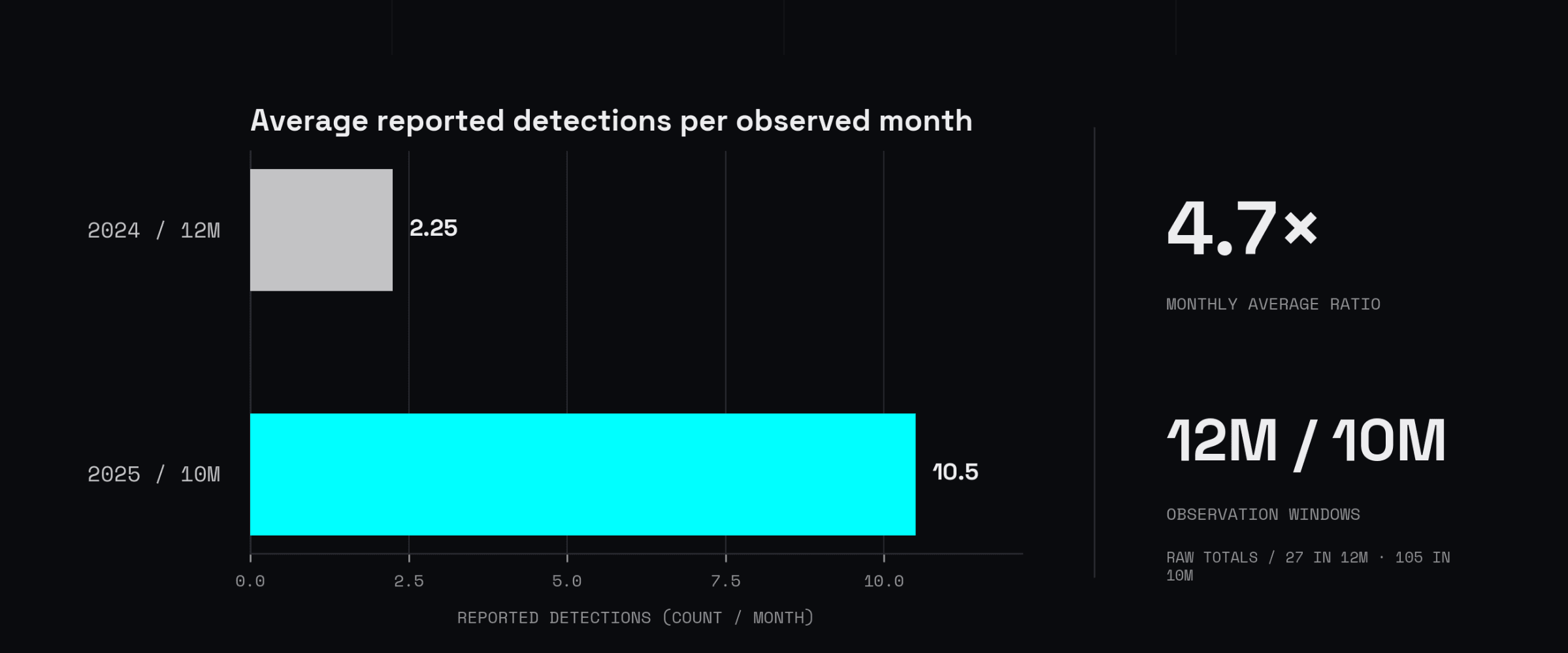
Reported malicious VS Code extension detections nearly quadrupled in 2025, from 27 in 2024 to 105 in the first ten months of 2025.
Using the observed months as the denominator, those totals average 2.25 detections per month in 2024 and 10.5 in January–October 2025, a 4.7× difference. This normalization compares the available periods; it does not reconstruct month-by-month activity.
Several incidents illustrate the range of failure modes:
- In 2023, Aqua Nautilus published a Prettier impersonation experiment that passed 1,000 installs in under 48 hours.
- In 2025, the Ethcode extension was poisoned through a malicious pull request that introduced a typosquatted dependency.
- TigerJack used extensions that fetched fresh JavaScript repeatedly, allowing behavior to change after review.
- GlassWorm hid code in invisible Unicode, stole publishing credentials, and spread through compromised packages.
The pattern matters more than any individual campaign: a package can begin malicious, inherit a malicious dependency, accept a poisoned contribution, fetch new behavior at runtime, or become compromised in a later update.
Marketplace scanning helps, but it is not the boundary
The official Visual Studio Marketplace now uses malware scanning, dynamic detection in a clean-room VM, signature verification, secret scanning, publisher-trust prompts, unusual-usage monitoring, and a block list that can remove known-malicious extensions.
Those controls make the Marketplace safer. They do not change the local permission model:
- enforcement is partly reactive, so installs can accumulate before removal;
- a payload can detect a scanner or fetch behavior later;
- alternative registries such as Open VSX have different controls; and
- once a desktop extension runs, it has the editor’s permissions.
Store scanning is an upstream filter. Your workstation, credentials, and source code remain the assets at risk.
Build an extension inventory
Start by listing what is already installed:
code --list-extensions --show-versionsReview the list as part of workstation and CI hygiene. Remove extensions that are unused, redundant, abandoned, or installed for one past task. Every extension and transitive dependency adds update authority to the environment.
For team-managed repositories, commit a reviewed recommendation list:
{
  "recommendations": [
    "esbenp.prettier-vscode",
    "dbaeumer.vscode-eslint"
  ]
}
Recommendations are not enforcement, but they move additions into normal code review and make the expected toolset visible.
Pin when update risk matters
Installing an extension from a .vsix file disables automatic update for that extension. That lets a team review and distribute a known package instead of accepting a future version automatically:
code --install-extension prettier-3.2.1.vsixYou can also disable automatic extension updates globally:
{
  "extensions.autoUpdate": "off",
  "extensions.autoCheckUpdates": false
}
Pinning trades silent supply-chain changes for an explicit maintenance burden. A pinned version can still contain vulnerabilities, so the process needs scheduled review and deliberate upgrades.
Allowlist extensions in managed environments
VS Code supports an organization-managed extensions.allowed policy that can allow a publisher, a specific extension, or specific versions:
{
  "extensions.allowed": {
    "*": false,
    "esbenp.prettier-vscode": true,
    "ms-python": true,
    "dbaeumer.vscode-eslint": ["3.0.0"]
  }
}
Microsoft documents the current options in its enterprise extension-management guide. Deny-by-default is the useful security property; the exact allowlist should remain small and reviewed.
Allowing an entire publisher is broader than allowing one extension. Use the narrowest rule that remains maintainable.
Inspect a VSIX before installation
A .vsix file is a ZIP archive. Unpack it and inspect the manifest:
unzip -q prettier.vsix -d unpacked
jq '{name,publisher,main,activationEvents,dependencies}' \
  unpacked/extension/package.json
Then search for capabilities that deserve manual review:
rg -n 'child_process|execSync|spawnSync' unpacked/extension
rg -n 'https?://|WebSocket|fetch\\(' unpacked/extension
Do not treat a substring match as a verdict. Bundled and minified code produces false positives, and process or network access can be legitimate. The goal is to find the code paths that receive the most authority.
Invisible Unicode is worth a separate tripwire because it has been used to conceal payloads:
rg -nP '[\x{200B}-\x{200F}\x{202A}-\x{202E}\x{FE00}-\x{FE0F}\x{E0000}-\x{E007F}\x{E0100}-\x{E01EF}]' \
  -g '*.js' unpacked/extension
This expression also catches benign emoji variation selectors and right-to-left text. A match means “read this by hand,” not “this package is malicious.”
For a higher-assurance review, also inspect:
- the package’s full dependency tree and lockfile;
- activation events, especially broad startup activation;
- post-install and build scripts;
- native binaries and obfuscated or minified bundles;
- remote code loading and update mechanisms;
- credential, wallet, browser-profile, and SSH-related file access; and
- differences between the public source repository and the packaged VSIX.
Reduce the blast radius
Keep the extension count small. Use short-lived GitHub, npm, cloud, and deployment credentials. Separate funded wallets and signing keys from the development profile. Open unfamiliar repositories in restricted mode first.
When reviewing untrusted code, use a read-only or disposable environment with restricted network access. Be careful when attaching the full desktop editor to a container: editor integrations can forward Git configuration, credential helpers, and SSH agents across the boundary.
A better install decision
Before installing an extension, ask:
- Is this the official publisher and repository?
- Do we need this capability, or is an existing tool sufficient?
- What files, processes, credentials, and network destinations can it reach?
- Can we review and pin the packaged version?
- Can we constrain it with an allowlist or isolated profile?
- Who owns the upgrade decision?
The install count was never a safety rating. It is a popularity number, and popularity can be manufactured. Treat every desktop extension as code you are about to run with your own privileges—because it is.
Marketplace behavior, settings, and linked vendor reports were reviewed on July 14, 2026. Live extension counts and Marketplace controls change over time; verify current Microsoft documentation before applying policy.
Contributor
About the author.
Vocabulary
Terms used in this article.
-
Audit
A smart contract audit is an independent, scope-bound security review of blockchain code using manual analysis, testing, tooling, and documented findings.
-
Code review
Security code review is the manual examination of source code and system interactions to identify defects, unsafe assumptions, and exploitable behavior.
Continue reading
Related research.
A staged workflow for reviewing unfamiliar repositories with AI agents using read-only mounts, no credentials, restricted networks, and disposable sandboxes.
So you want to write and deploy a smart contract, huh? Let’s set up this environment for a sample project from scratch